


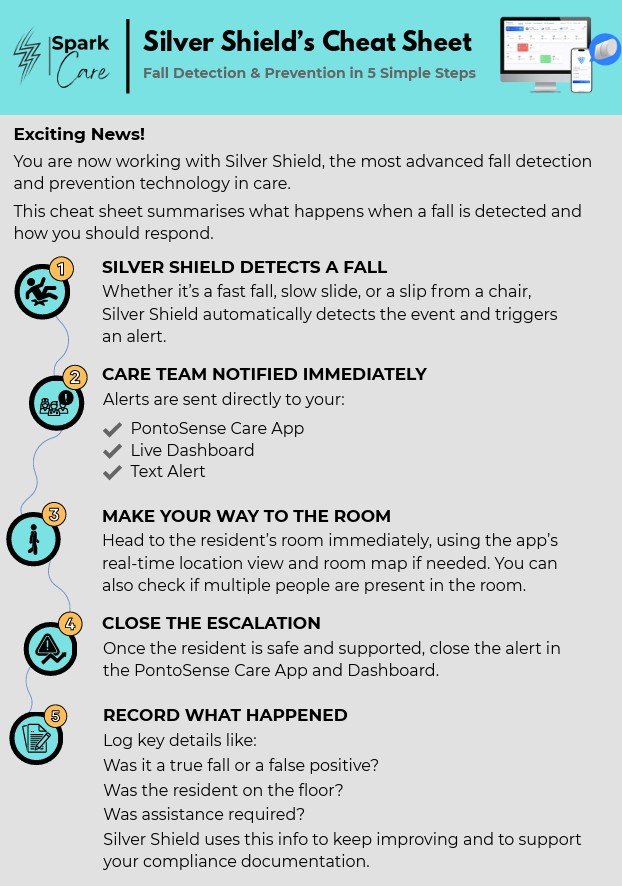
1. Log in to the Pontosense Care app.
2. Select the Home you’d like to add the sensor to.
3. Tap the Add Sensor button.
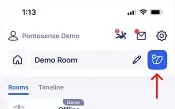
4. Follow the on-screen instructions to complete the setup.
Installation can be completed in as little as 10 minutes.
Start by downloading Pontosense Care from the Apple App Store or Google Play Store , designed to help you look after those who matter most.
Install your device in a corner of the room, ideally between 2.0 and 2.1 meters from the floor. Make sure it has a clear view of the entire room for best performance.
Helpful Tips:
Choose a spot close to a power outlet.
The device is humidity-resistant and safe for bathrooms, but do not install it inside a shower.
For ideal coverage, place the device in a corner that faces the room’s entryway.
The performance of the sensor is best when the room dimensions are as accurate as possible. We recommend measuring to the nearest 10 cm.
The Silver Shield will still function in this area for up to 6.0 x 6.0 m, however, the excess area will not be monitored or tracked.
We recommend choosing a sensor location that covers the highest traffic area and furniture that may be involved in an incident.
Hold the button on the underside of your device for approximately 5 seconds, until the LED starts blinking red. When you release the button, the LED should blink green, indicating that the device is ready to be paired to a Wi-Fi network.
The Silver Shield sensor must be plugged into a standard power outlet at all times to function. It does not operate on batteries.
Yes. Silver Shield supports presence detection for up to three people in the same room. However, fall detection is designed for one individual at a time and is paused if multiple people are present in the room.
Silver Shield can be moved to a different home. In the case you move to a new home, perform a factory reset on your sensor and follow the installation process again to set it up in your new space.
To factory reset the sensor, press and hold the button on the device until it flashes red.
The fall detection delay period is the short window of time between when a fall is detected and when an alert is sent. This period allows the AI to confirm the event with greater accuracy by filtering out everyday movements that may look like a fall (e.g. squatting, bending, etc). For the best results, we recommend setting the delay period to 90 seconds, which helps ensure you receive the most reliable alerts.
Falls can be viewed in the Fall Alerts tab with details about the fall, including the date, time, room, and duration of the fall event.
Hundreds of sensors can be paired to one account, allowing a large scale view of all sensors across one facility or multiple homes.
For each home, the timeline view gives caregivers insight on residents’ behaviour. Learn about the amount of time spent in bed and on other furniture, as well as the amount of time spent in each room.
To navigate to the timeline view in the mobile app, select the home you’re interested in and navigate to Timeline.
Yes, you can update a room’s calibration values even after installation.
To make changes in the Pontosense Care App:
Open the app and navigate to the room you’d like to update.
Tap the Settings icon in the top right corner.
Under Calibration Settings, tap the grey field that displays the current installation height and room dimensions.
Confirm the room height when prompted, then tap Save and Continue.
Adjust the room’s width and length by either dragging the edges or entering exact measurements in the X and Y fields.
No. Once the Silver Shield regains power, it should appear back online within one minute. This is visible in the App and can be monitored with notifications.
After adding Silver Shield through the App via the installation process, it will be linked automatically to the specific home connected to your account.
Yes, you can access the app on different devices. However, if you log into another phone or desktop at the same time, the first session will automatically be logged out for security reasons.
No. Admin roles and functions are only available through the web portal, not the mobile app.
Weekly reports become available once your sensor has been active for at least one week. In this first version of our rollout, reports are only generated for bedrooms. To view them, open the app and go to Home > Weekly Report [Beta].